Removing a background
Create transparent PNGs in an instant
You can access this tool from an image details page or from the Modify with AI icon when you hover over an image in the search results or your generation history.
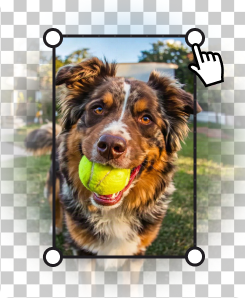
Select Remove background to open the editing console. The tool will automatically delete the background from the main subject to create a transparent PNG. Review the image to ensure it meets your expectations.
Note: Because of how the AI handles background removal, the new version cannot be edited further using our AI tools, so ensure this is the final step when modifying your images.
Looking to replace a background? Use our prompt‑based editing feature and specify “background” in your prompt or highlight the background using the Click or Brush tools.
Recommended for you

Adding or replacing image details
Turn almost there into just right—use powerful AI tools to modify and refine pre‑shot or visuals you’ve generated on‑site.

Learn how easy it is to download and license your commercially safe AI‑generated and modified images that include flexible usage rights.
Expand images to fit different platforms, make more room for copy, or adjust the positioning of the visual’s main subject.