Adding or replacing image details
Choose an image to modify
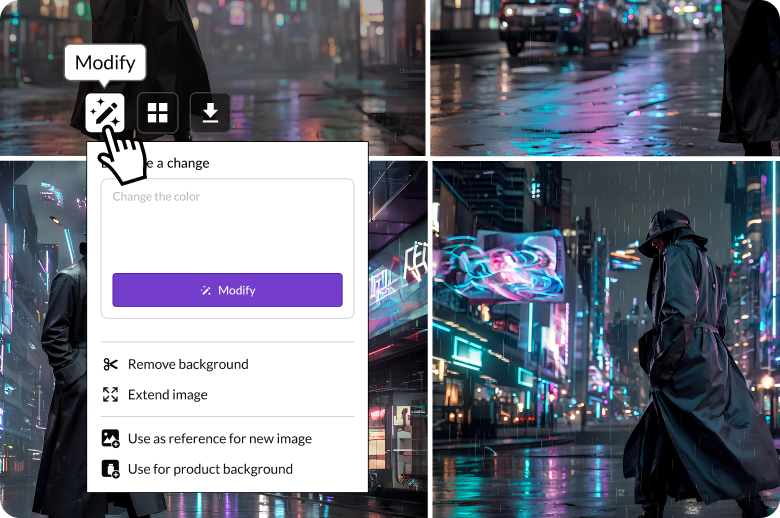
Select one of your AI‑generated images
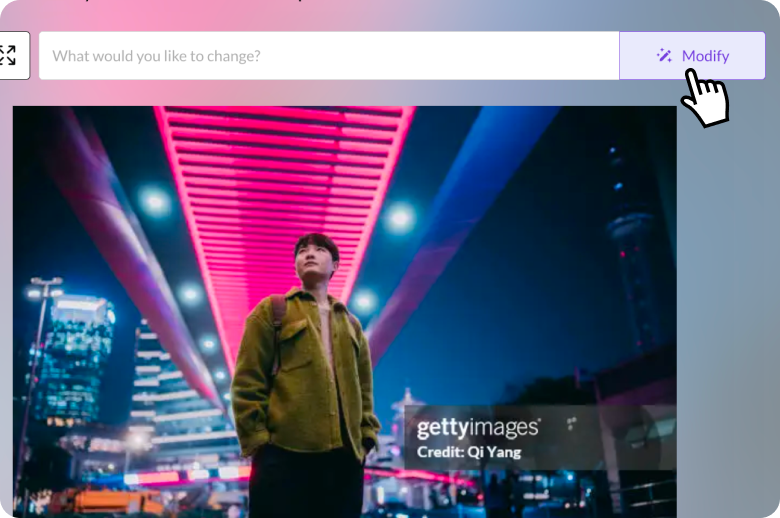
Refine an image you’ve previously licensed
Make changes using text prompts
Simply describe your change in the prompt box in the lower right corner of the page. Be specific and descriptive in your instructions, then click Modify. The AI tool will generate 4 modified versions of the image, displaying one, with the full set available as thumbnails below the image.
The column above the prompt box is your modification history, so you can easily see the adjustments you’ve already made.
Need more control? Try the Brush or Click selection tools.
Refine with greater precision using Click and Brush
When selected, Click automatically identifies and highlights individual details in an image. You can use each individually or hold shift and click to combine multiple selections and generate new image elements, remove details, or seamlessly replace details including the background. Brush allows you to paint specific areas on an image you’d like to change.
When using either tool, a contextual toolbar appears whenever you make a selection. Here, you can:
- Add a text prompt to guide the modification
- Change the brush size (when Brush is active)
- Remove object to delete your selection and fill in the background automatically to match the environment
- Undo to remove the last selection you made. You can continue to step back and remove through all the selections this way
- Clear deletes all selections.
Recommended for you
Transform ideas into original visuals in seconds—just use the text prompt and filters to turn your vision into reality.
Learn how easy it is to download and license your commercially safe AI‑generated and modified images that include flexible usage rights.
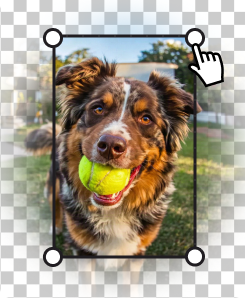
Expand images to fit different platforms, make more room for copy, or adjust the positioning of the visual’s main subject.